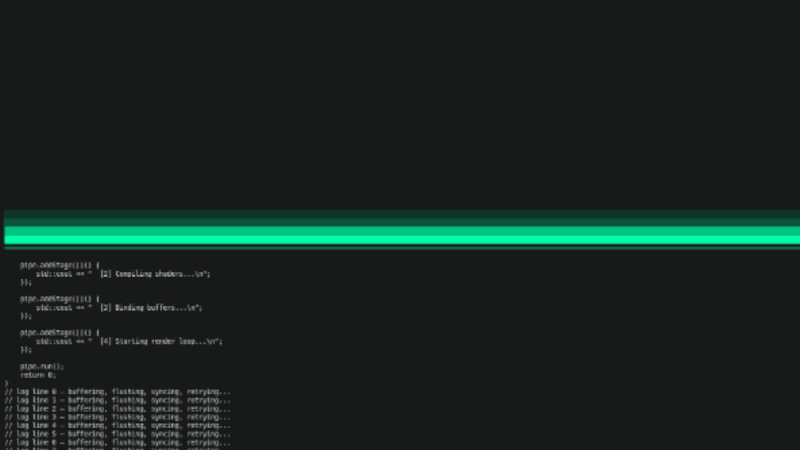
sclide is an implementation of a wipe effect for terminals. It draws a horizontal line that sweeps across the screen, accompanied by a trail with four levels of shading. Then, when requested, it uses the same effect to progressively clear the terminal, line by line.
The project was designed to be small, straightforward, and easy to integrate into other C++ programs.
Key features:
- 24-bit RGB colors: customize the colors of the line and the trail using RGB values or hexadecimal codes.
- Four-level trail: uses the characters
█,▓,▒, and░to create a visual gradient. - Configurable speed: control the interval between animation steps.
- Animated clearing: erase the terminal contents with a vertical transition.
- Character customization: replace the symbols used in the trail.
- Lean implementation: does not depend on external libraries and pre-calculates the animation sequences to reduce work during rendering.
In action:

Installation
sclide is distributed as C++ source code, and its installation basically consists of obtaining the sclide.cpp file and incorporating it into your project. There is no need to install an additional library.
Windows
The recommended path is to use WSL (Windows Subsystem for Linux), since the project uses POSIX calls to query the terminal dimensions and write output.
1. Install WSL, if it is not already available, using PowerShell run as administrator:
wsl --install2. Open the installed Linux distribution and install the compilation tools:
sudo apt update
sudo apt install git g++ build-essential
3. Clone the repository:
git clone https://github.com/intriXlabs/sclide.git
cd sclide
4. Copy the sclide.cpp file into your C++ project directory and follow the usage example presented in the next section.
You can also compile C++ projects natively on Windows with other tools, but sclide’s operation in that environment is not guaranteed by the original project.
macOS
On macOS, you can use Clang provided by Apple’s command-line tools.
1. Install the development tools, if necessary:
xcode-select --install2. Clone the repository:
git clone https://github.com/intriXlabs/sclide.git
cd sclide
3. Copy the sclide.cpp file into your project directory.
4. Compile your application using clang++ or g++, with support for C++11 or higher.
GNU/Linux
On Debian- or Ubuntu-based distributions, install Git and the compiler:
sudo apt update
sudo apt install git g++
Then, obtain the source code:
git clone https://github.com/intriXlabs/sclide.git
cd sclide
Copy sclide.cpp into your project and compile the application as shown in the following example.
On other distributions, install the C++ compiler and Git using the corresponding package manager.
Getting started
The sclide API is simple: create an object, configure the colors and speed, and call clean() to run the animation.
Create a file named main.cpp in the same directory as sclide.cpp:
#include "sclide.cpp"

int main(){
    // Sets the starting line of the animation.
    sclide wipe(5);

    // Main color: teal.
    wipe.setSclideColor("#00FFAA");

    // Color toward which the trail will fade.
    wipe.setShadeDegradingColor("#001111");

    // Time between steps, in seconds.
    wipe.setSpeed(0.05);

    // Runs the animation and clears the terminal.
    wipe.clean();

    return 0;
}
Compile the program in the terminal:
g++ -O3 -std=c++11 main.cpp -o exampleRun it on macOS or GNU/Linux:
./exampleOn Windows, run the binary inside the WSL environment:
./exampleThe result is an animated line with a colored trail, followed by the progressive clearing of the screen. Since clean() erases the terminal contents, run the example in a test session.
Customizing the animation
sclide provides methods to adjust the effect during execution.
| Method | Purpose |
|---|---|
setSclideColor() |
Sets the main color of the line. |
setShadeDegradingColor() |
Sets the final color of the gradient. |
resetSclideColor() |
Restores the main color to white. |
setSpeed() |
Adjusts the interval between steps. |
changeShades() |
Replaces the four trail characters. |
clean() |
Runs the animation and clears the terminal. |
Colors can be configured with hexadecimal codes, such as "#FF6600", or with RGB components. To create different styles, try combining a vibrant main color with a dark degrading color or one close to the terminal’s background color.
For more information, visit the repository