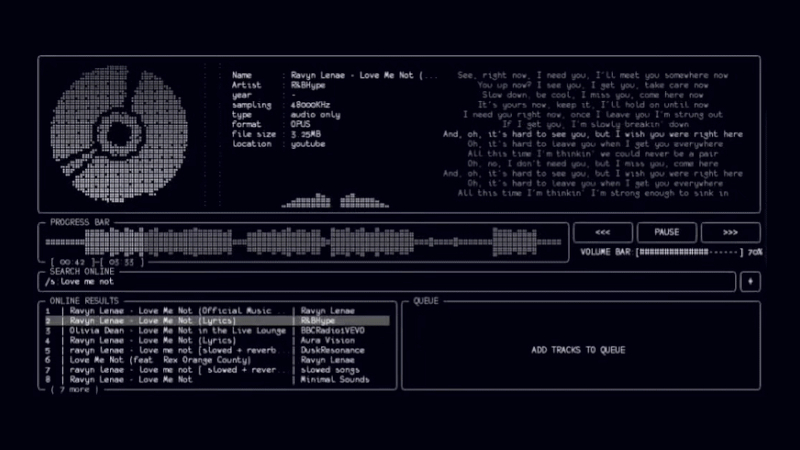
Mousiki is a music player based on TUI (Terminal User Interface), meaning that instead of opening a traditional graphical interface, the entire experience takes place directly within the terminal.
It was developed in C++ and uses a relatively lean architecture. The project uses CMake for compilation and C++17 as the language standard.
Among the available features are:
- Playback of locally stored music;
- Search and streaming of music online;
- Synced lyrics;
- Highlighting of the word currently being sung;
- FFT spectrum visualizer;
- Waveform;
- Disc animation;
- Playback queue;
- Shuffle;
- Repeat;
- Search and filtering;
- Volume control;
- Stream downloading;
- Customizable colors;
- Configurable keyboard shortcuts.
Installation
Mousiki currently does not work like those traditional programs where you download an .exe, .dmg, or .deb and simply click “Install.”
Installation is mainly based on compiling the source code.
The main requirements indicated by the project are:
- Git;
- CMake;
- Compiler compatible with C++17;
- FFmpeg;
- yt-dlp;
- Python 3;
- Python package
syncedlyrics.
GNU/Linux
sudo apt update
sudo apt install git cmake build-essential ffmpeg yt-dlp python3 python3-pip
Then install the package used to fetch synced lyrics:
python3 -m pip install syncedlyricsMousiki’s own setup.sh essentially performs this dependency installation process and then compiles the program.
Now clone the repository:
git clone https://github.com/itzender5820/mousiki.gitEnter the folder:
cd mousikiOn Debian/Ubuntu systems, there is a setup script:
bash setup.shAfter that, the executable should be located at:
build/mousikiTo start it:
./build/mousikiYou can also install the executable into a system directory using install, cmake --install, mv, ... for example:
sudo mv ./build/mousiki /usr/bin/Usage
Basic controls
The current default configuration defines several important shortcuts:
| Key | Function |
|---|---|
↑ / ↓ |
Navigate through the list |
Enter |
Play |
p |
Play/Pause |
n |
Next track |
b |
Previous track |
← / → |
Rewind/Fast-forward |
1 |
Increase volume |
2 |
Decrease volume |
r |
Repeat |
m |
Shuffle |
/ |
Search |
a |
Add to queue |
d |
Remove from queue |
Tab |
Switch between cards/panels |
f |
Filter by folder |
c |
Clear filter |
q |
Quit |
y |
Download stream |
These shortcuts come from the default configuration file and can be modified.
For more information, visit the repository.